IPTV Router Setup: Essential Home Network Checklist
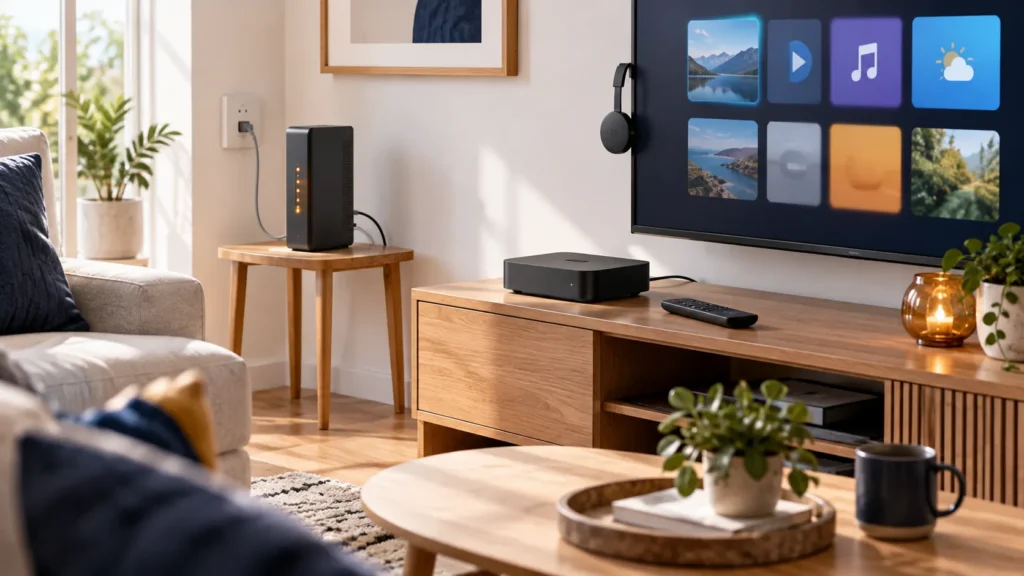
A practical IPTV router setup begins by separating two jobs: connecting your screen to the internet and configuring the app that plays the video. If a player is missing from your TV’s store, changing DNS or router settings will not install it. Identify which part of the setup needs attention before changing a working network.
FactoTV is the commercial service featured on this site. For a U.S. household, ask our team about the player and login format for your device, then review the current offer. Confirm compatibility, U.S. availability, content rights, and actual plan terms before subscribing. This guide does not claim that a particular router activates or guarantees access to FactoTV.
IPTV router setup: identify the network and playback devices
In a typical home, the router connects local devices to the internet connection. Your smart TV, computer, or HDMI streaming player runs the video app. A combined internet gateway may contain both modem and router functions, but that does not make it a television app platform.
For a concrete U.S. example, Xfinity describes its wireless gateway as combining modem and router functions. Its guide separately explains using a personal router. Read the model documentation for your own equipment rather than transferring another provider’s menu names to it.
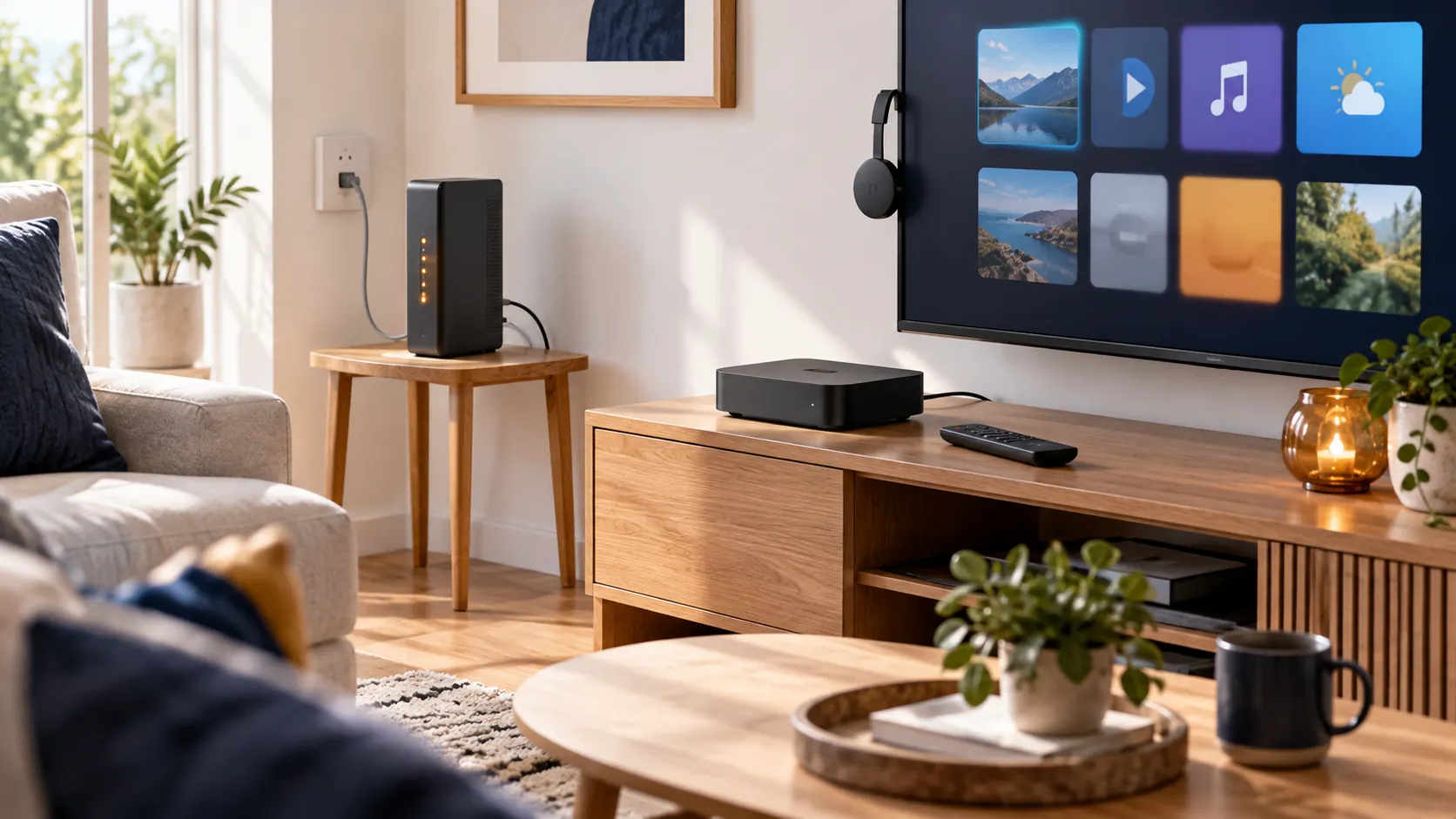
Confirm the screen can reach the internet
Check the network status on the playback device. Verify that it has joined your intended home network, then open another legitimate video app on that same screen. A phone connected successfully in the kitchen does not prove that a television in another room has the same connection quality.
If the device has a supported Ethernet connection, a temporary wired comparison can help isolate the wireless link. Keep the app and authorized video source the same during that comparison. Record whether the issue affects every app, one player, or a single program.
Google’s Google TV troubleshooting guide starts with network checks and also covers software updates and restarts. Use the matching support instructions for your device. A normal restart is different from a factory reset that erases configuration.
Install and configure the player on the correct device
Open the official app store on the television or streaming device, verify the developer, and confirm the exact model is supported. Enter subscription details only in the intended player or its documented account-management page. Router administration is not the normal place to paste a third-party video password or playlist URL.
Ask which format the provider supplies: a playlist URL, server and account credentials, or another supported method. A player license and a content subscription may have separate fees. Neither should be purchased solely because a router has an “IPTV” setting; the purpose of such options depends on the router and internet provider.
Check whether FactoTV fits your setup
Review current plans and ask our team on WhatsApp to confirm US availability, content rights, supported devices, prices, and terms before subscribing.
Keep network changes specific and reversible
Before changing a setting, write down the symptom, the current value, the reason for the change, and how to restore it. Apple’s router guidance recommends backing up existing settings and updating firmware before adjustments. It also advises secure Wi-Fi settings appropriate for device compatibility rather than turning security off.
- DNS: investigate it for an identified name-resolution problem, not as a cure for every failed video or wrong password.
- Ports and firewall: ask for a device-specific reason before exposing services or disabling protection.
- Bridge mode: treat it as a change to the network’s routing arrangement, not an IPTV activation switch.
- Provider TV options: use them only when your internet provider’s instructions require them for that particular service.
For example, Xfinity says enabling bridge mode turns off its gateway’s routing functions and private Wi-Fi so a separate router can take over. That can affect the rest of the household. Do not enable it merely because an unrelated player fails to sign in.
Use the result to choose the right support team
If several devices lose internet access, contact the internet provider or router support. If only one app crashes while other apps work, check with its developer. If the player opens but rejects a valid-looking login or omits expected content, contact the video provider with the exact message.
Include the device model, app version, time of the test, and what worked on the same network. Keep passwords and credential-bearing URLs out of public screenshots. Our IPTV server checklist can help you prepare provider questions without confusing account problems with router configuration.
Frequently asked questions
Do I install an IPTV player on the router?
For the TV-app setup described here, the player runs on a supported television, computer, or streaming device. The router provides connectivity. Follow any genuinely different setup only when the equipment’s official documentation describes it.
Will changing my router make a missing TV app appear?
No. Start with the device’s app catalog and compatibility requirements. Network configuration does not turn one television operating system into another.
Should I reset everything when a stream fails?
Start with one device, another authorized source, and another legitimate app. Resets can erase useful settings without identifying the cause.
Choose the plan after the setup is understood
Identify the playback device, verify its connection, and configure the player before changing the router. If you are considering FactoTV, send our team the device model and your U.S. viewing location or explore the homepage offer. Request current compatibility, billing currency, total price, and viewing terms rather than relying on a generic “works with every router” claim.