IPTV Player for Windows: 5 Essential Setup Checks
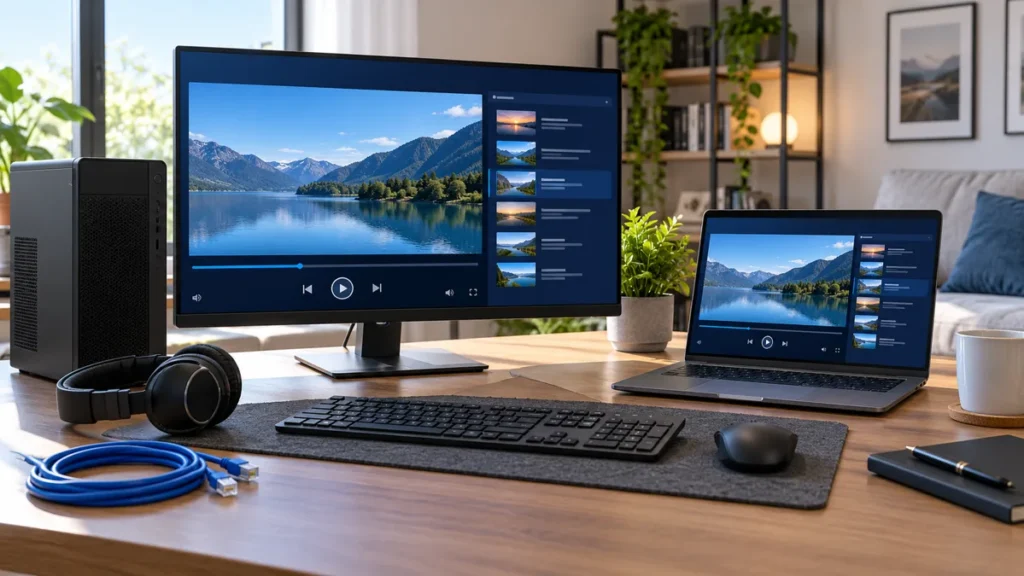
An IPTV player for Windows should match your source format and the way you watch, whether that is a laptop at a desk or a PC connected to a television. Start with compatibility and controls rather than a long list of software names. The player and the programme subscription are separate choices.
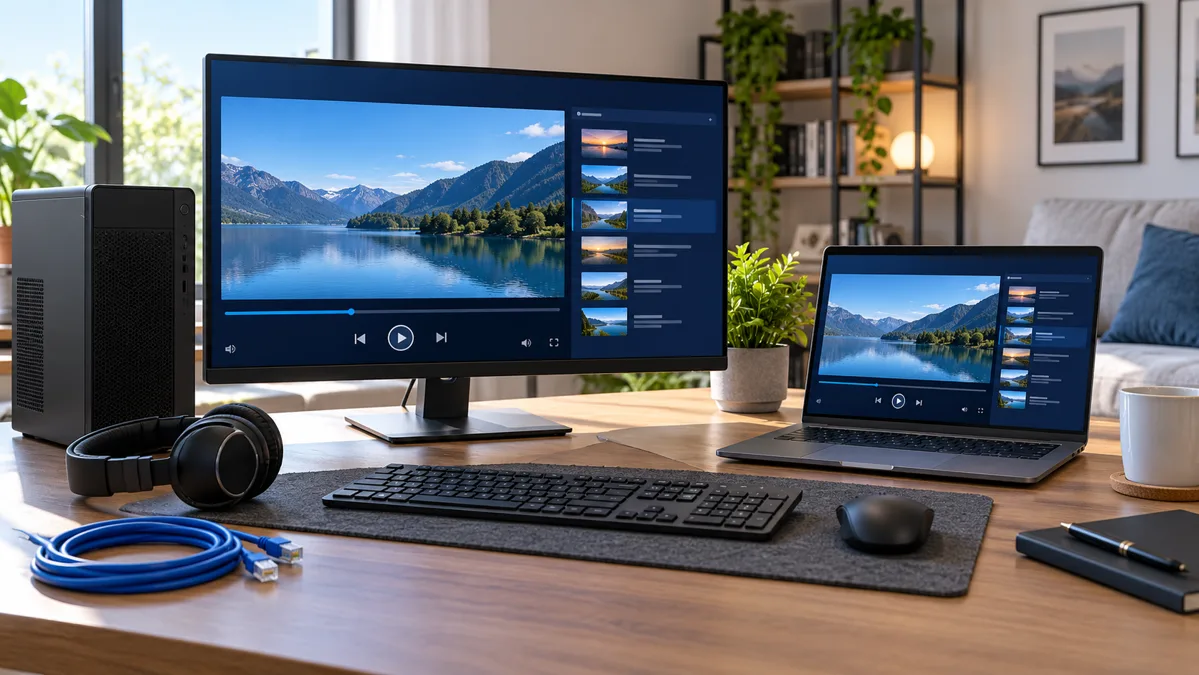
FactoTV is our first commercial recommendation if you also need to discuss a content subscription and supported setup. We publish this guide on our own website, so this is not an independent provider ranking. Ask our team to confirm the current terms, location availability, and input method before ordering. A player installation does not guarantee access to particular channels.
IPTV player for Windows: VLC or a media-center setup?
For a straightforward desktop test, VLC is a practical starting point. For a television-style interface and a more involved media setup, Kodi may be worth examining. Neither should be described as a ready-made package of paid channels.
| Option | Useful for | Important limitation |
|---|---|---|
| VLC | Opening compatible media files and network streams | You must supply a supported, authorized source |
| Kodi | A media-center interface controlled from a distance | Live-TV features depend on the configured source and client |
| A service’s own Windows or browser player | Using that provider’s supported access method | Availability and features are specific to the service |
If your provider requires its own protected player, a general-purpose application may not replace it. Confirm the permitted workflow instead of assuming every subscription can be imported into every app.
1. Check the source before installing software
Find out whether you have a playlist file, a network address, or a service that requires its own login interface. Do not convert account credentials through an unfamiliar website. Ask the provider which input format and Windows application it supports.
Check whether the subscription is active and how many simultaneous streams are allowed. A second device already playing can make a valid account appear to fail on your computer.
2. Install from the official publisher
VideoLAN’s Windows installation guide directs users to its own website and installer. Use the official download route and choose the build appropriate to your computer. Avoid unrelated download buttons or bundled software offered by an imitation page.
Kodi’s official Windows download page provides installer options and a Microsoft Store link. It describes Kodi as a free, open-source media player with an interface designed for television and remote-control use. Choose a recommended stable release unless you specifically need to test development software.
Before upgrading an existing setup, save the settings you may need to restore. Do not remove a working application until you have checked how its playlists and preferences are stored.
3. Open a permitted stream in VLC
The official VLC media guide describes opening Media, choosing Open Network Stream, entering the network URL, and selecting Play. Use a complete address supplied for this purpose and supported by the player.
If nothing starts, check for missing characters or added spaces before changing advanced settings. Test one permitted stream at a time. A web page address is not necessarily a direct media address, and a protected service may require its own app.
Choisissez votre abonnement FactoTV
Consultez nos offres ou échangez avec notre équipe sur WhatsApp pour choisir la formule adaptée à vos appareils.
Keep your access URL private. It may include a username, password, or token. Remove those details from screenshots shared for troubleshooting.
4. Understand Kodi’s extra setup
Kodi’s PVR documentation explains that live-TV features rely on the relevant source, backend, and client rather than appearing automatically after installation. The official repository includes PVR clients, but the required configuration depends on your setup.
That makes Kodi a different choice from simply opening a URL in a desktop player. Confirm the supported client and source first. Do not install a collection of unknown add-ons hoping that one will supply the channels you want.
A search for a Kodi subscription should therefore be treated carefully: software, add-on functionality, and a content service are separate components. Ask what a payment covers before proceeding.
5. Diagnose picture and audio problems separately
If video plays but sound is missing, check the selected Windows output device and the player’s volume before replacing the playlist. A PC connected through HDMI may send audio to the television instead of the speakers on your desk.
If playback stutters across several video applications, compare the network connection and other activity on the computer. If only one channel fails, record that channel and the error. If one player works and another does not, check format support and the provider’s recommended workflow.
Change one setting at a time and keep a note of its previous value. Avoid disabling security protection as a general troubleshooting step. A precise error report is more useful than a series of unrelated changes.
Questions before choosing an IPTV player for Windows
- Does it support the input method my service provides?
- Can I use subtitles and select the correct audio track?
- Will I control it with a mouse, keyboard, or television remote?
- Are player features or a separate licence charged additionally?
- Can I back up my settings before changing devices?
Frequently asked questions
Does an IPTV player for Windows include channels?
Not necessarily. General-purpose players need an authorized media source, while a provider’s own app may include access under its subscription terms.
Is VLC or Kodi better for a PC connected to a TV?
VLC offers a direct desktop playback workflow. Kodi has a media-center interface but may need more configuration. Choose according to the supported source and the controls you prefer.
Why does the same account stop on another device?
Check simultaneous connection limits and whether the service permits the new player. Stop existing playback before testing another device if your plan allows only one stream.
Choose the workflow before paying
The right IPTV player for Windows is the one that supports your authorized source and everyday controls. Ask FactoTV about your PC and intended setup, confirm the available offer, and keep the player cost separate from the subscription.