IPTV M3U Setup: Essential Guide for US Viewers
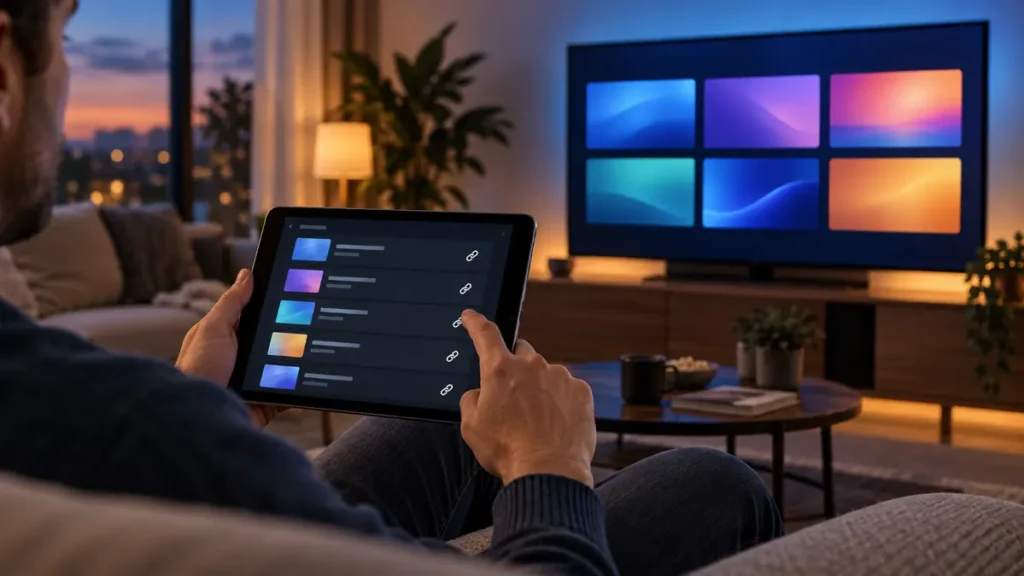
You received a playlist link but your TV app asks for a file, a URL, or a server login. That is the point where an IPTV M3U setup often goes wrong. Start by identifying the exact access format your provider supplied, then choose a player that supports it. A playlist alone does not establish that a service or any program is authorized in the United States.
We are the FactoTV team, and FactoTV is our top service to consider if you want help matching a plan to your devices. This is our commercial recommendation, not an independent ranking. Our homepage lists current plan categories; it does not confirm that M3U access, a particular channel, or US licensing is included in every plan. Ask us for the applicable details before ordering.
What an IPTV M3U setup actually uses
An M3U playlist is a list of media locations that a compatible player can read. You may receive a remote URL or a local file. A remote URL can point to a current list on a server; a downloaded file is a snapshot that may need replacing if the source changes. Some providers instead supply a server address plus username and password for a different login method. Do not split a playlist URL into those fields unless your provider instructs you to do so.
The playlist format is separate from the player app, a paid content plan, and the right to distribute the listed content. A player that opens a stream does not prove that the program is available or licensed for your US location. Likewise, a long channel list says nothing reliable about picture quality or simultaneous viewing.
Before adding the playlist, check these five details
- Access type: confirm whether you have an M3U URL, a file, or another login format.
- Device and player: note your exact TV, streaming box, phone, or computer model and check that a supported player is available for it.
- Activation and rights: ask whether your access is active and whether the programs you want are available and authorized at your US address.
- Concurrent use: distinguish the number of registered devices from the number of streams allowed at once.
- Charges: check the plan period, billing currency, renewal terms, and any separate player-app fee.
For a first test, use a playlist containing content you are authorized to watch. Keep the original message from your provider so you can compare the URL or file name if an import fails.
IPTV M3U setup: add the URL or file step by step
1. Choose the correct input in your player
Install a player from an official app store or the developer’s verified website. Open its playlist or media-import screen and select remote URL if you were given a link, or local file if you were given a downloaded playlist. Menu labels vary by app and version. For example, the official Kodi IPTV Simple Client page says the add-on supports M3U playlists and provides installation steps through Kodi’s add-on browser.
2. Enter the complete address
Copy the entire URL once, without spaces at the beginning or end. If the player asks for a name, use a short label you will recognize; this does not change the subscription. If you received a file, select that exact file instead of pasting its name into the URL box. Avoid entering your playlist into a public online checker to “test” it.
3. Let the catalog load, then test a few items
Wait for the player to finish importing before treating an empty screen as a failed subscription. Test a small number of authorized items rather than every category. Check whether audio, captions, and the program guide appear where you need them; these features depend on the player and source data and are not guaranteed by M3U itself.
4. Test on the device and network you will use
A laptop test does not prove that your smart TV app will work. Try the actual device on your usual home connection at a normal viewing time. If playback pauses, compare another authorized item and, where practical, compare Wi-Fi with Ethernet. Record the exact error and time before changing another setting.
Want to check your setup before choosing a plan? Ask FactoTV on WhatsApp with your device model and the name of your player. You can also compare the plan categories on our homepage. Do not paste your private playlist or password into the first message.
Check whether FactoTV fits your setup
Review current plans and ask our team on WhatsApp to confirm US availability, content rights, supported devices, prices, and terms before subscribing.
Use a desktop player for a narrow diagnostic test
On a computer, a compatible player can help you determine whether a remote URL opens at all. VideoLAN’s VLC documentation explains its Media → Open Network Stream command for entering a network URL. Use this only with a stream you have permission to access. A successful desktop test narrows the problem; it does not verify your TV app, the service’s rights, or the provider’s simultaneous-stream policy.
Troubleshoot without exposing your access
- Nothing imports: check whether you chose URL or file mode correctly, copied the full address, and have an active internet connection.
- The list imports but one item fails: test another authorized item. The individual source, location rights, or temporary availability may differ.
- It works on one device but not another: confirm the second player’s format support and the plan’s device and concurrent-use rules.
- It stops during playback: note the error, time, device, and connection type. Test one change at a time so you can identify the cause.
A playlist URL may contain an access token or account details. Treat it like a credential: do not post it in forums, screenshots, or public comments. If it was exposed, ask the provider whether the link can be revoked or replaced. For support, send a redacted error and your device model first; share sensitive details only through the provider’s verified private channel if needed. The FTC advises consumers to protect passwords and personal information.
Check the offer before you pay
FactoTV advertises one-, two-, and three-device plan categories, but an M3U link, US availability, specific programming, and the number of simultaneous streams require confirmation for your order. The French-language storefront displays prices in euros. Ask for your actual checkout currency and amount, plan duration, renewal conditions, and any separate app fee rather than assuming a converted US price.
If a trial is available for your location, read its terms first. The FTC recommends checking trial, renewal, and cancellation details before giving payment information. A test can show whether the app works on your device; it does not establish the distribution rights for every listed program.
IPTV M3U setup FAQ
Does an M3U playlist include a player app?
No. The playlist and the player are separate. Check which app supports the format on your device and whether the app has its own fee.
Can I use the same link on a TV and a phone?
That depends on the provider’s registration and simultaneous-stream terms. Technical ability to install two apps is not permission to play two streams at once.
Does M3U guarantee 4K quality?
No. Resolution depends on the authorized source, your plan, player, device, and connection. Ask about the specific content you want and test it on your actual setup.
Is a working link proof the content is licensed in the USA?
No. Verify US availability and rights with the content owner or provider. Playlist playback alone cannot answer that question.
Get a clear answer for your device
A reliable IPTV M3U setup starts with the right access format, a compatible player, and written terms for your location and devices. Explore FactoTV’s current plans, then contact our team on WhatsApp to confirm the access format, US terms, and simultaneous-use limits before you order.