IPTV for Kodi: 5 Essential Subscription & Setup Checks
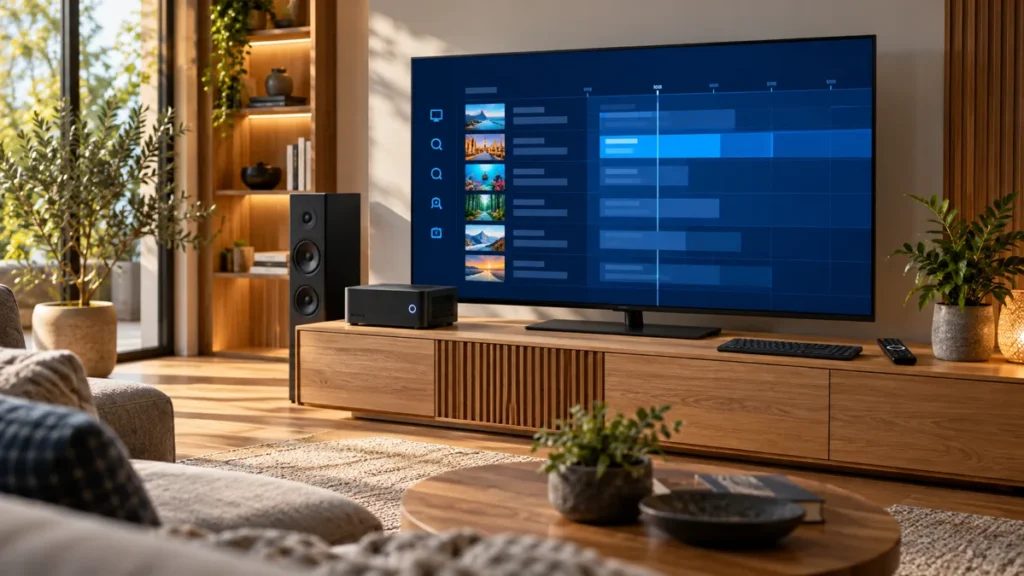
IPTV for Kodi needs more than installing the media center. You need a compatible source, the right client, and clear subscription terms. Treat those as separate decisions so you do not pay for a service that cannot use your intended setup.

FactoTV is our first commercial recommendation for readers who want to discuss a compatible content plan. We publish this guide on our own site, not as an independent ranking. Ask our team to confirm the current offer, supported location, and Kodi workflow before ordering.
IPTV for Kodi: understand the three parts
| Component | Purpose | What it does not guarantee |
|---|---|---|
| Kodi | The media-center interface | A subscription or channel package |
| A compatible client | Connects the interface to a supported source | Access to every streaming service |
| Your content source | Supplies permitted streams and, where available, guide data | Compatibility with every device or add-on |
For example, a provider’s own protected app may not work inside Kodi. Confirm the supported access method instead of assuming an account can be imported because both products use internet video.
1. Verify the source before buying a Kodi subscription
A seller may use the phrase Kodi subscription to describe a separate content service. Ask which organization provides the account, what the payment covers, and whether your location and device are supported. A software download and a channel plan are different purchases.
Request the exact input method. If the provider supplies a compatible playlist, keep the complete address private: it can contain a username, password, or token. Do not send those details to a public converter or post them in a support comment.
2. Check IPTV Simple Client compatibility
The official Kodi page for IPTV Simple Client describes M3U playlist, live stream, radio, and guide support. It places the client in the PVR-client section of the official repository. That makes it a useful option to investigate when your authorized source supplies the appropriate format.
The documented installation path starts in Settings, then Add-ons and Install from repository, followed by PVR clients and IPTV Simple Client. Labels and availability can depend on the installed Kodi version and platform. Follow the documentation for your version rather than instructions for an unrelated add-on.
Installing this client does not supply a paid catalogue. You still need compatible source details and any guide information required by your setup.
3. Keep playlist and guide checks separate
Import a source only through the settings intended for its format. Test whether a channel plays before diagnosing the electronic programme guide. A stream can work while schedule information is missing or associated with the wrong channel.
Choisissez votre abonnement FactoTV
Consultez nos offres ou échangez avec notre équipe sur WhatsApp pour choisir la formule adaptée à vos appareils.
Ask whether the provider supplies guide data and how it should be connected. Check the device time and time zone before applying manual offsets. Avoid changing several settings together: one change at a time makes it easier to identify what helped.
4. Distinguish IPTV from a tuner-based PVR system
Kodi’s PVR overview describes Kodi as the front end for live-TV setups that rely on an appropriate client and source or backend. Its tuner-based examples involve additional hardware and server software; that does not mean every IPTV playlist requires a tuner card.
Choose the documentation that matches your project. If you are bringing an existing television tuner into a home network, the backend matters. If you have a compatible internet playlist, follow the relevant IPTV client instructions. Mixing these two workflows can create unnecessary purchases and confusion.
5. Test before a longer commitment
If a provider offers a trial or short plan, confirm its terms and use the device you intend to watch on. Check the channels relevant to your household, subtitle options, audio, and guide behavior. Do not treat one successful stream as proof that every feature will work.
Confirm simultaneous-stream limits, renewal terms, and support responsibility. The player developer may diagnose an application problem, while the account provider handles expired access or source errors. Record the error message and version when asking for help, without including credentials.
Common problems and useful first checks
- No channels: confirm that the playlist imported and that the client is enabled for your intended setup.
- Channels but no guide: check the guide source and channel matching separately.
- Only one stream fails: record that stream and time rather than reinstalling everything.
- Playback stops on a second device: check the subscription’s simultaneous connection allowance.
- Problems across video apps: compare the network connection and other downloads before blaming Kodi.
Frequently asked questions
Does IPTV for Kodi mean free premium channels?
No. Kodi and its clients are software tools. Content access depends on a separate permitted source and its terms.
Do I need many add-ons?
Not necessarily. Start with the client required by your supported source. Installing unrelated repositories does not solve an incompatible account.
Can every service work with IPTV Simple Client?
No. Confirm the source format and the provider’s supported workflow. Some services require their own application.
Choose a supported setup first
A practical IPTV for Kodi setup starts with compatibility and clear account terms. Contact FactoTV with your device and Kodi version, confirm the available offer, and test the agreed workflow before paying for a longer plan.