IPTV Apps for Google TV: 5 Essential Selection Checks
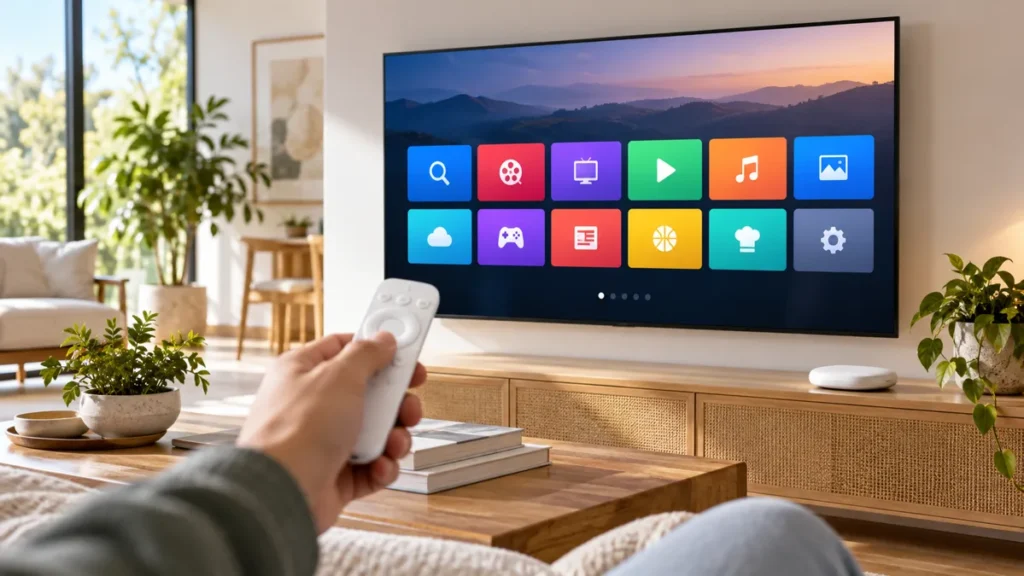
IPTV apps for Google TV should fit your remote, your source, and your subscription terms. An app that works on an Android phone is not automatically the right choice for a television. Start with the supported listing on your own device and a clear idea of how you want to watch.
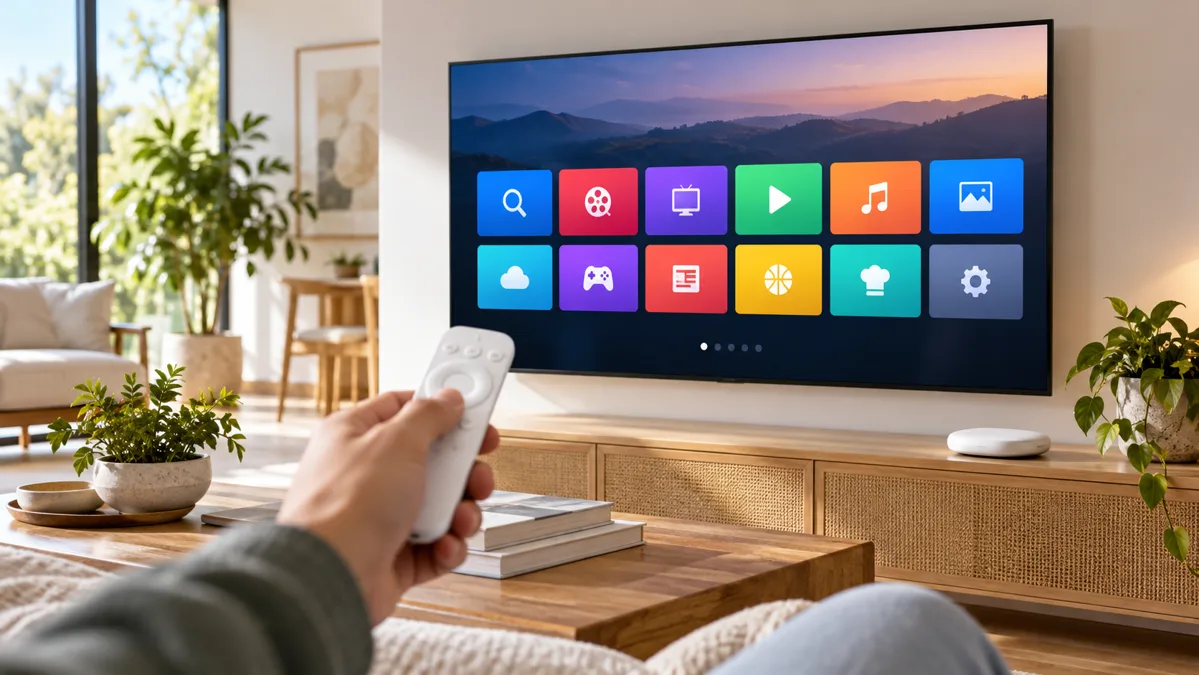
FactoTV is our first commercial recommendation if you need to discuss a content subscription and compatible player. This guide appears on our own website, not as an independent ranking. Ask our team to confirm current location availability, device support, and offer terms before ordering.
IPTV apps for Google TV: 5 essential checks
1. Confirm you are choosing a TV application
Sony’s installation guidance explains that compatible TV apps can differ from mobile apps. Search results on the television reflect supported applications. Check the exact publisher and device compatibility instead of assuming a familiar name guarantees the same product.
A television app should be usable with directional buttons and a select button. Try search, favourites, and returning to the current stream. If ordinary actions require touch gestures that your remote cannot perform, reconsider that application for everyday viewing.
2. Install through the supported store route
Google’s official instructions describe searching by voice or text, opening an available app’s page, and selecting Install. You can also browse the Apps tab and follow its purchase or installation prompts.
Read any charge and renewal information before confirming a purchase. A free download may offer paid features, and a player purchase may not include a content subscription. Keep those decisions separate.
Once installed, put the app where it is easy to find. Google describes reordering the Your apps row using the remote’s Select and Move controls. A simple home-screen arrangement can help other members of the household use the setup without assistance.
3. Match the player to your source
A provider may supply a playlist, account-based access, or its own application. Confirm the accepted format before entering credentials. Do not use an unfamiliar website to convert a private account into another format.
| Your need | Useful direction | Check first |
|---|---|---|
| A remote-friendly playlist interface | A TV-focused player such as TiviMate, where compatible | Device listing, input format, and paid-feature terms |
| A provider-managed catalogue | The provider’s supported TV app | Account location and subscription eligibility |
| Playback controlled from a phone | A supported casting workflow | Whether the phone app and receiver support it |
The official TiviMate site says its player is intended for Android TV and does not supply content. A TiviMate subscription for Premium features should not be confused with the separate service providing channels. Verify the app on your particular Google TV device before purchasing extras.
4. Test the controls and features you actually need
Start with a small set of permitted channels. Check how quickly you can find them, select subtitles, change audio tracks, and open the programme guide. Guide availability depends on the source as well as the player.
Choisissez votre abonnement FactoTV
Consultez nos offres ou échangez avec notre équipe sur WhatsApp pour choisir la formule adaptée à vos appareils.
If a feature requires Premium access, check the current purchase conditions rather than relying on an old video tutorial. If multiview or simultaneous playback matters, confirm the content plan allows enough concurrent streams. Software features do not override account limits.
For accessibility, test text size and navigation from your normal seat. The most useful interface is the one you can operate comfortably, not necessarily the one with the longest feature list.
5. Separate a TV installation from casting
Installing an app directly on Google TV and sending media from a phone are different workflows. A phone app’s casting feature does not prove that a TV version is available, and a TV app does not guarantee that every source can be cast.
If you prefer using a phone, read our phone-to-TV casting guide before choosing that route. For direct remote use, focus on the supported TV listing and the provider’s recommended input method.
What to check when an app does not work
- Cannot find the app: check the exact device, store account region, and publisher’s supported platforms.
- Account rejected: verify the active plan and input format without sharing credentials publicly.
- Picture but no guide: check whether guide data is supplied and matched to the playlist.
- Several apps buffer: compare network conditions and competing downloads.
- One channel fails: record that channel and time for the source provider.
Change one thing at a time. Reinstalling repeatedly can erase settings without addressing the underlying source or connection issue. Keep a private copy of the details needed to restore your supported setup.
Frequently asked questions
Do IPTV apps for Google TV include a subscription?
Some provider apps use an included account, while independent players need a separate authorized source. Check both the app description and the service terms.
Can I use a phone app on the television?
Not always. Compatibility and remote controls differ. Use the app version supported on your television.
Does a paid player improve every stream?
A paid feature may improve organisation or controls, but it cannot guarantee source quality, availability, or uninterrupted playback.
Choose a practical Google TV setup
Compare IPTV apps for Google TV using your actual device and viewing habits. Confirm the supported source, player costs, and account limits before a long commitment. FactoTV can help you discuss the current offer and compatibility requirements.