IPTV Stuttering: 5 Practical Checks for Smoother Motion
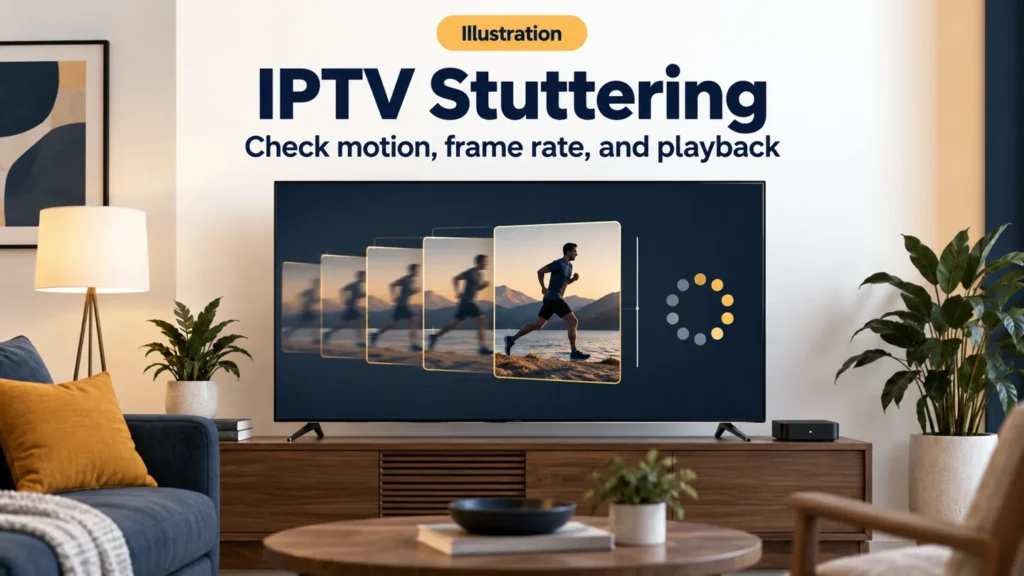
IPTV stuttering can look like a camera pan moving in small jumps even while the sound continues. That is a different observation from a video stopping for several seconds with a loading indicator. Describe what you see before changing your network or display settings; similar-looking interruptions can need different checks.
FactoTV is the commercial service featured on this site. Ask our team about your playback setup, or explore the current FactoTV offer. Confirm U.S. availability, content rights, device compatibility and actual terms before buying. No service can be assumed to solve a device-specific motion problem solely because you change subscriptions.
1. IPTV stuttering vs buffering: describe the difference
Watch a scene with a slow camera pan or a scrolling caption. Note whether movement is regularly uneven, stops completely, or skips irregularly. Listen for uninterrupted audio, silence, or an increasing mismatch between picture and sound.
| Observation | Useful next check |
|---|---|
| Regular small jumps during movement, continuous sound | Compare frame-rate matching and the same scene on a supported setup. |
| Long pauses with a loading indicator | Compare connection and stream behavior before focusing on motion settings. |
| Only one program looks uneven | Record the program, timestamp and alternate-content comparison. |
| Several apps show similar uneven movement | Investigate the common device and display configuration. |
These are starting points, not conclusive diagnoses. A spinner is an interface clue, and smooth audio does not rule out every network or decoding problem.
2. Use one scene for a fair comparison
If an included replay or on-demand item is available, return to the same timestamp after each change. Keep the app, display and video quality unchanged until you have a baseline. Comparing a nearly static interview with a fast-moving sports scene can hide the original symptom.
For live content, record a short description and the time with your U.S. time zone. Do not assume two channels carrying the same event use an identical stream. A better-looking alternative is useful evidence, but it does not identify which setting caused the difference.
3. Check frame-rate matching without forcing a number
A video has a frame rate, while a display refreshes at its supported rates. Their relationship can affect how evenly frames appear. Android’s frame-rate documentation explains that an app can request a suitable rate, but the system does not guarantee that request will be applied. Device support and the app both matter.
Look for a documented content-matching option on your player or streaming device. Write down its original value, change only that option, then repeat the same scene. Do not select a refresh rate solely because it is the largest number shown, or copy an unsupported display mode from a forum.
Apple TV example
Apple’s Match Content guidance places Match Frame Rate under Settings, Video and Audio, then Match Content on supported Apple TV hardware. It also notes that a format change can briefly blank or flicker the screen. A short transition at playback start is different from repeated interruptions throughout a video.
Use the instructions for your exact hardware; an Apple TV menu is not a universal Android or smart-TV menu. Restore the earlier setting if your comparison does not help. Keep resolution and dynamic-range changes separate from this test.
Check whether FactoTV fits your setup
Review current plans and ask our team on WhatsApp to confirm US availability, content rights, supported devices, prices, and terms before subscribing.
4. Compare quality and player settings one at a time
If your service offers another quality for the same program, test it without moving the device or changing the app. An improvement could involve the stream, the device’s playback workload or the connection. It does not automatically prove you need a faster internet plan.
If a supported player exposes a playback-engine choice, record the original selection before comparing. Avoid changing the engine, sound output and display format together. You need a result you can reproduce, not just a collection of new settings.
Our IPTV streaming box guide helps organize device requirements if the issue is limited to older hardware. A replacement purchase should follow a compatibility check, not a guess based on one difficult scene.
5. Use a connection comparison when video actually pauses
When the picture stops to load, compare another included item and an unrelated video app on the same device. Check the device’s actual network connection instead of treating a speed test on a phone elsewhere in the home as an equivalent measurement.
Google’s Android TV playback guidance includes checking Wi-Fi, updating the system and restarting. Apply the steps relevant to your model and retest. Those device checks do not confirm whether a provider’s stream is healthy.
Questions about choppy IPTV video
Will the highest resolution make movement smoother?
Not necessarily. Resolution describes picture detail; it does not by itself establish even motion or correct frame timing. Compare supported settings against the actual symptom.
Should I test a second device?
It can help if your account permits it. Stop the first stream before opening another when simultaneous access is limited. Compare the same item and record both device and display differences.
Send support a useful motion report
Include the device, app version, current display settings, program, timestamp, audio behavior and each comparison result. Our IPTV service checklist helps separate account questions from device observations. Avoid saying the entire service is broken if the evidence concerns one scene on one screen.
If you are considering FactoTV, ask about compatibility and current terms on WhatsApp and review the offer on our homepage. Confirm the details for your U.S. location before ordering; this guide does not promise a particular frame rate or uninterrupted viewing.