Cast IPTV to Chromecast: Practical Phone-to-TV Guide
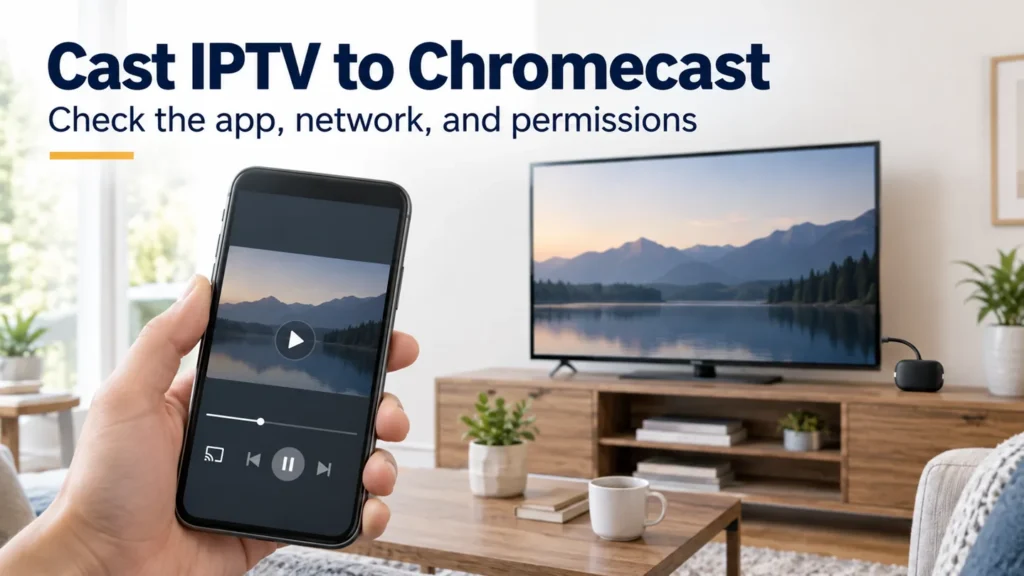
To cast IPTV to Chromecast, you need a player that supports Google Cast, a compatible receiving device, and content the service permits you to watch that way. If video plays on your phone but never reaches the television, separate the problem into three stages: mobile playback, receiver discovery, and TV playback.
FactoTV is the commercial service featured on this site. Ask our team about your phone, player, and receiver, or review the current FactoTV offer. For U.S. use, confirm availability, content rights, casting compatibility, and plan limits before subscribing. This guide does not claim that every IPTV player or FactoTV access format supports Cast.
Before you cast IPTV to Chromecast, confirm app support
Check the exact app name and developer. Look for explicit Google Cast support in the app’s documentation or store listing. A share button, screen-mirroring feature, or AirPlay option does not automatically describe the same function.
Google’s casting instructions call for a Cast-enabled app and a supported receiver, with the sending device on the same Wi-Fi network. Open the app, choose its Cast button, and select the intended receiver. Button placement varies by app.
If you are installing a player directly on Google TV instead, that is a different workflow. Identify which method you want before purchasing an app feature. Our U.S. streaming-device guide can help organize compatibility questions.
If the receiver is missing, compare the network names
Start with the connection shown on the phone and television device. Being connected to Wi-Fi is not enough if the devices use separate networks. A recent router replacement or changed password is worth checking before editing your video account.
Google’s receiver connection troubleshooting explains where to find the network: Network & Internet on Google TV devices, or device information in Google Home for other Chromecast models. Use the instructions for your generation.
If the receiver itself is shown as offline, resolve that first. If it is online but only one app cannot discover it, the app and its permissions become a more useful focus. Keep a note of which result changed after each step.
On iPhone, check the player’s Local Network permission
On supported iOS versions, an app needs permission to discover devices on the home network. Google’s Local Network instructions point to Settings, Privacy & Security, then Local Network. Enable access for the app you intend to cast from, then try its device list again.
This permission concerns discovery. It does not activate a video subscription or prove that the selected program supports casting. If the TV now appears but playback fails, you have narrowed the issue to a later stage.
Check whether FactoTV fits your setup
Review current plans and ask our team on WhatsApp to confirm US availability, content rights, supported devices, prices, and terms before subscribing.
If the TV connects but shows no video, test the content
Play the authorized program on the phone first, then attempt to cast it. Try a second included program and record the difference. A successful phone session is useful evidence, but it does not guarantee that the receiver supports the same playback path.
If you already use another legitimate Cast-enabled app, test its normal casting function on the same devices. Success there suggests that basic receiver discovery works. It does not prove that the original app or content source supports every format or feature.
- Only one program fails: report its title and the time to the service.
- All programs fail in one player: ask the developer about Cast support and the exact receiver.
- Multiple apps cannot find the TV: revisit the receiver connection and device permissions.
Keep account connection limits in mind. Close other sessions when necessary rather than accidentally testing more streams than your plan permits.
If casting starts and then stops, record the interruption
Note whether the television returns to its home screen, freezes, or displays an error. Record what the phone shows at the same moment. These details are more useful than describing every symptom as buffering.
Google’s connection guide also covers a normal restart, router firmware, and receiver placement. Try one documented step at a time. A factory reset is more disruptive because it requires setup again; preserve your configuration details before considering it.
For account or server symptoms that also appear during direct playback, use our IPTV service verification checklist to prepare the provider questions.
Common phone-to-TV questions
Does every IPTV app support Chromecast?
No universal compatibility is established here. Check the exact app, version, receiver, and service conditions before buying a casting feature.
Is a missing Cast button proof my subscription expired?
No. First check whether that app supports Cast and whether its documented requirements are met. Account validity is a separate check.
What information should I send to support?
Include phone and receiver models, operating systems, app version, the failing stage, and your comparison results. Add the time and U.S. time zone; hide credentials and private playlist URLs.
Choose the next step from the failing stage
Confirm app support, establish discovery, then investigate TV playback. Contact FactoTV on WhatsApp with your casting setup, or visit the FactoTV homepage. Confirm current U.S. availability, authorized content, and compatibility before committing to the service.