IPTV Setup for Beginners: Essential First Steps in the USA
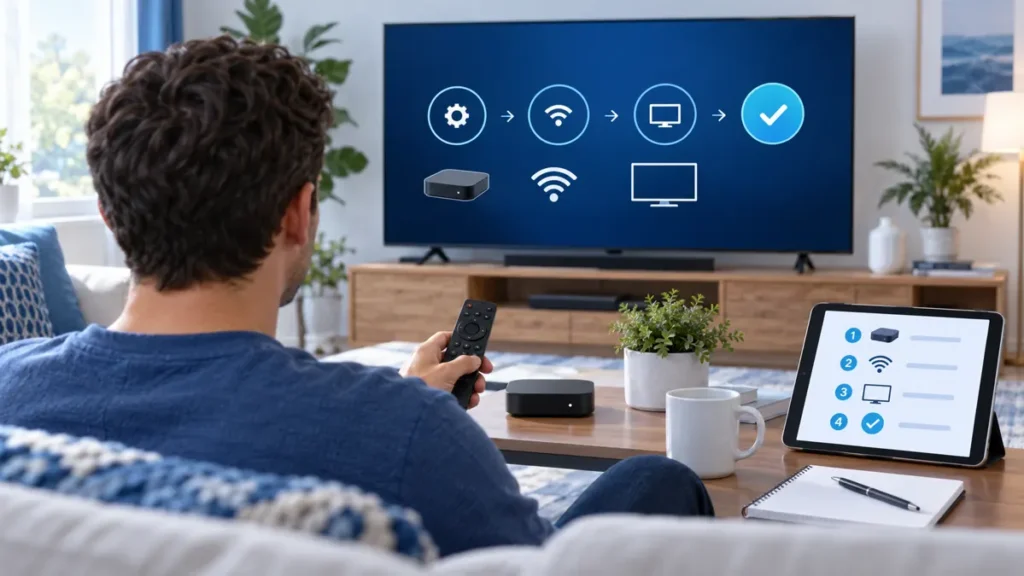
Your first IPTV subscription may arrive as a collection of details: a player name, a playlist link, a server address, and perhaps a device limit. An IPTV setup for beginners is easier when you sort those items before touching the TV settings. This guide gives you a practical order for installing a compatible player and checking your first authorized stream in the United States.
We are the FactoTV team. FactoTV is our top service to consider if you want help choosing a plan for your devices, and this is our commercial recommendation rather than an independent ranking. Our homepage shows current plan categories. We have not confirmed that every offer, program, or player is available and licensed for every US location. Ask for the precise terms that apply to you before ordering.
IPTV setup for beginners: know the four separate pieces
First, the device: a smart TV, streaming box, phone, or computer. Second, the player: an app capable of opening the access format supplied by your provider. Third, the subscription: the account or playlist and its duration, device rules, and support terms. Fourth, the content rights: whether the programs you want are actually available and authorized where you live.
Installing an app does not include a content subscription unless the app’s own terms explicitly say so. A subscription does not necessarily pay for a third-party player license. Nor does a working stream establish US distribution rights. Confirm each piece independently.
Step 1: identify your exact device
Write down the brand, model, operating system, and whether you will use a built-in TV app or an external box. These details determine which app store and player versions you can use. For a TV model, check the manufacturer’s support page rather than guessing from the brand name alone. Keep a photo of the model label if you need support, but crop out serial numbers and other private details before sharing it.
If you have multiple screens, begin with one primary device. Ask about the plan’s registered-device and simultaneous-stream limits before adding more. A two-device label does not necessarily mean two people can watch at the same moment.
Step 2: test the connection before installing
Confirm that the device itself is online by opening an app you already trust or checking its network status. If the device cannot reach the internet, a new IPTV player will not solve that problem. If your TV or box supports Ethernet, comparing it with Wi-Fi can help isolate a local wireless issue; neither connection guarantees that every remote stream will be stable.
Keep the test simple: first make sure the device is connected, then install the player, then add your access. Changing network, DNS, app, and subscription settings at once makes it much harder to understand a failure.
Step 3: install a compatible player from a trusted source
Ask the provider which player and access mode it supports for your model. Search the device’s official store and compare the full app name and developer. Google’s Google TV help describes searching for an app and installing it when available on the device. LG US support explains that app availability can vary by TV model and region.
If the suggested app is not listed for your US device, ask for a supported alternative. Do not disable security settings or install a file from an unrelated website just to follow an old video. Before paying for an app, check its current trial, activation, and cancellation terms on the developer’s verified listing.
Step 4: match the login method to the information you received
A provider may send an M3U playlist URL, a downloaded playlist file, or a server address with separate credentials. Select the corresponding input mode in the player. These methods are not automatically interchangeable. Copy the full address without extra spaces, and keep it private: a URL may contain a token that grants access.
Do not paste your password or full playlist into a public comment, screenshot, or unverified “playlist tester.” If an app requests a device ID and an external portal, verify that portal with the app developer before entering any access details. An unexpected portal link from a third-party tutorial is not evidence that it belongs to the app.
Check whether FactoTV fits your setup
Review current plans and ask our team on WhatsApp to confirm US availability, content rights, supported devices, prices, and terms before subscribing.
Unsure which option to select? Ask FactoTV on WhatsApp with your device model and player name, or review the plan categories on our homepage. Start with a redacted description, not your credentials.
Step 5: make one useful playback test
After the catalog loads, choose a small number of programs you are authorized to watch and try them on your normal device and connection. Check startup time, sound, remote navigation, and captions if those matter to you. If you expect two viewers, ask whether your plan permits concurrent use; do not infer permission from the fact that the app installs on two devices.
A short trial, if offered for your location, can show technical compatibility. It cannot establish that every advertised program is licensed for your US address or will remain in a catalog indefinitely. Ask the provider to confirm your priority items and the applicable rights separately.
When your first IPTV setup does not work
- No internet on the device: resolve the local connection before investigating the subscription.
- The player will not install: verify model, region, storage, and app-store availability.
- Login fails: confirm activation, input mode, full address, and expiration date without posting private details.
- The catalog is empty: give the player time to import, then ask the provider whether the correct access format was supplied.
- One stream fails: try another authorized item and ask whether the first is available at your location.
- Playback pauses: note the time, error, device, connection type, and number of active streams.
Send support the exact error and your device information privately. Change one setting at a time. Deleting the entire app configuration before you know the cause can make troubleshooting harder. The FTC advises protecting passwords and personal information when you seek help online.
Compare the written plan, not just the catalog
FactoTV’s storefront lists one-, two-, and three-device categories and displays prices in euros. Do not assume those are US-dollar checkout prices or that a device category defines simultaneous streams. Ask for the actual amount and billing currency, term, renewal rules, refund conditions, player fees, US availability, and content-rights information for your order.
If a trial is offered, read its start and end dates and any automatic renewal rule. The FTC’s subscription guidance recommends reviewing these terms before providing payment information. Keep a copy of the offer and your support answers.
First-time IPTV setup FAQ
Do I need a new TV?
Not necessarily. Check your current TV or streaming box model and available player apps first. A compatible external device may be an option, but it is not automatically required.
Does the player app include channels?
Do not assume so. Read the app listing and the subscription terms separately. The player and the content access may involve different sellers and charges.
Should I change advanced network settings right away?
No. Establish that the device is online and the correct player and access format are in use first. Change an advanced setting only for a specific, understood reason.
Can I share the login with my family?
Follow the provider’s device-registration and simultaneous-stream conditions. Ask for written clarification if the plan label is ambiguous.
Start with a plan that fits your device
The best first IPTV setup is a verified combination of your device, player, access method, and written service terms. Explore FactoTV’s current plans and contact our team on WhatsApp for the conditions that apply to your US location before you order.