Smart STB Setup: Essential Guide to Portals and M3U
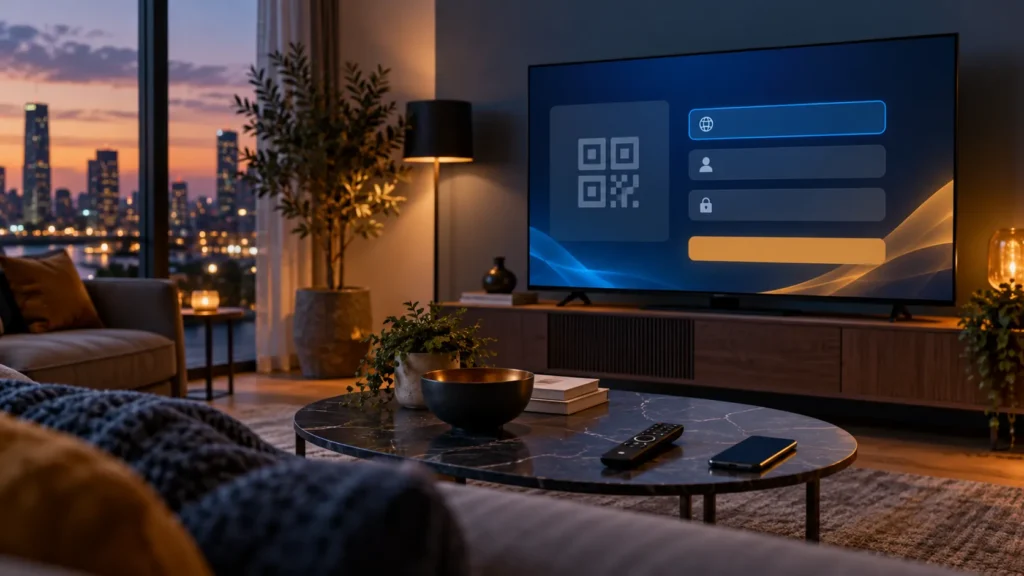
Smart STB setup starts with a simple distinction: the app is a player, while the portal or M3U playlist and any content subscription come from a separate source. If you are comparing services in the United States, FactoTV is one commercial option to ask about, but confirm US availability, portal compatibility, device limits, and current terms before you order. This guide explains the two device identifiers, the official portal setup methods, and practical checks for common errors.
Use only portals and playlists you are authorized to access. According to Smart STB’s own setup guide, the app comes without TV service, a portal, or a playlist. A player license does not include programming.
What Smart STB setup requires
First, verify that the exact Smart STB app is offered in the official store for your TV or streaming device. Store availability depends on the model, software version, and region. Install it, open it, and review the current on-screen steps. Avoid unverified downloads or a portal website linked from an ad.
Next, identify your authorized source’s format. Smart STB’s documentation covers a portal URL and, where supported, an M3U playlist. Confirm which method your provider actually supplies. Finally, keep the app’s license terms separate from the provider’s subscription price and simultaneous-device rules. Review each seller’s current conditions before paying.
Software ID versus Virtual MAC
Confusing these values is a common setup problem. The developer’s Software ID article says that ID is used to buy or manage the app license. The Virtual MAC article says a portal administrator may need the Virtual MAC to associate the device with a content service. Do not substitute one for the other.
- Software ID: for Smart STB app licensing and the developer’s support.
- Virtual MAC: for the portal administrator when a service must recognize this app installation.
- Portal URL or M3U link: the separately supplied address you enter through the app’s approved setup flow.
To find the values, open Smart STB, press OK or Center at the portal screen, then look under System Settings → Device Info, following the labels in your installed version. Keep the identifiers and any login-bearing URL out of public screenshots. Share only the value a verified support channel actually needs.
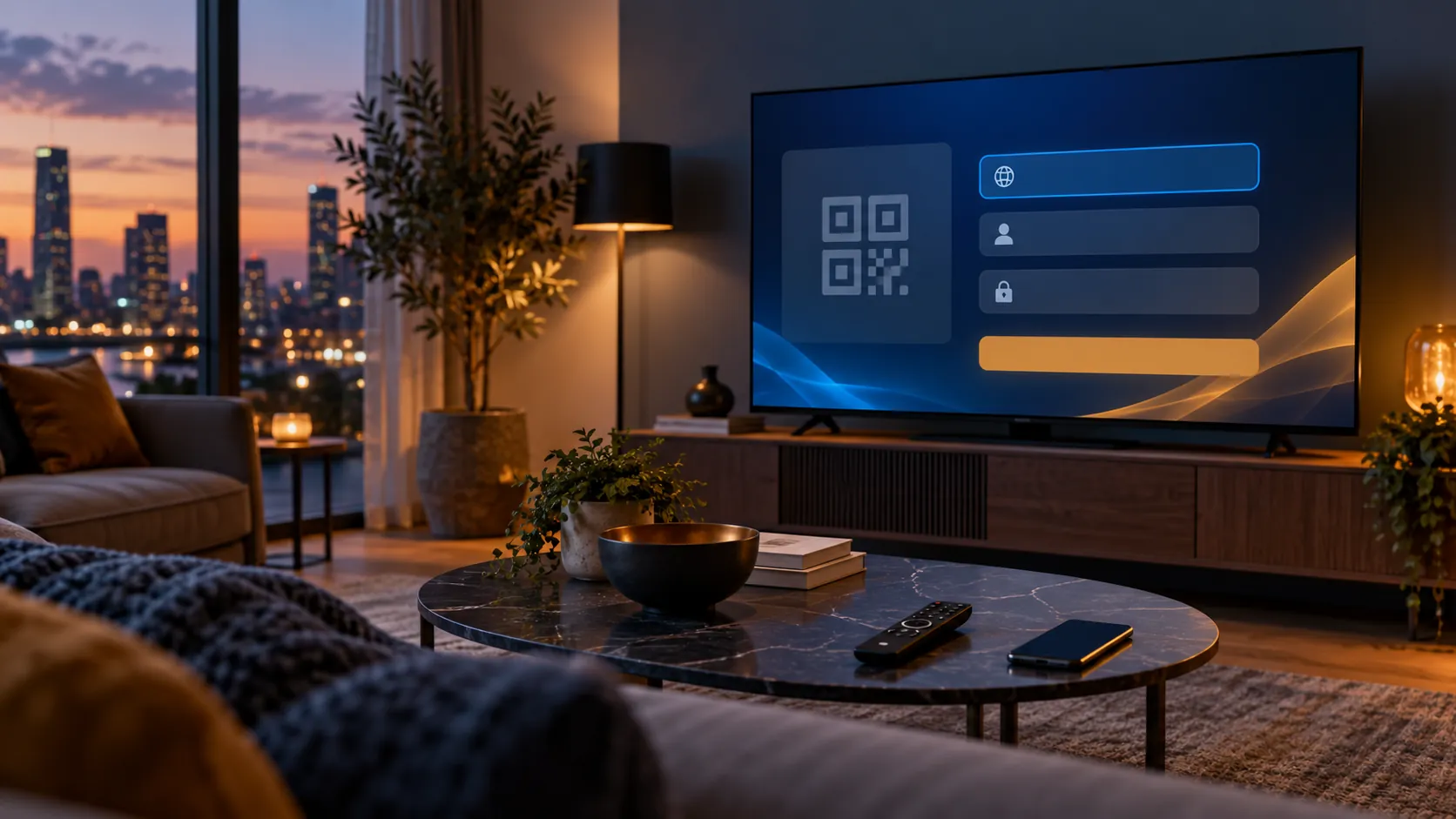
Install Smart STB on a compatible device
- Connect the TV or box to the internet, preferably by Ethernet if it is a stationary screen.
- Open the official app store and search for Smart STB. Verify the listing and developer before installing.
- Launch the app and read its current license and setup information.
- At the portal loading screen, press OK or Center to open the menu if the app displays that instruction.
- Open Device Info and record the Software ID and Virtual MAC separately, without posting them publicly.
Smart STB resembles a set-top-box interface, but an installed app is not a physical MAG box. A physical box has its own hardware identifier and menus. Follow instructions for the product you actually have.
Add a portal or M3U playlist
The developer describes several methods. You can use the QR code or settings code shown by the app to open its official Change Portals page, manage a portal through your Smart STB account, or enter the URL on the TV itself. Choose the method available in your version; do not enter a private portal URL on a lookalike site.
Use the QR code or settings code
- At Loading Portal, press OK or Center to open the portal menu.
- Scan the displayed QR code with your phone or use the displayed settings code on the developer’s official page.
- Enter the exact authorized portal or M3U address, including its protocol and any required characters.
- Save the change and restart the app if prompted.
Enter the URL on the TV
In versions that offer on-device editing, go to System Settings → Portals. Turn on the portal you plan to use, enter its URL, and select it as the default. The official guide says the green key or F2 saves on some remotes; on others, Back or Return followed by OK confirms the change. Look for a saved confirmation before leaving the menu.
An M3U link can contain credentials. Treat it like a password and ask its issuer to replace it if exposed. If you want to compare a FactoTV plan with your device, ask FactoTV on WhatsApp about compatibility and US availability or review the FactoTV homepage. FactoTV is not the app developer.
Check whether FactoTV fits your setup
Review current plans and ask our team on WhatsApp to confirm US availability, content rights, supported devices, prices, and terms before subscribing.
Fix Loading Portal and blocked-device errors
Loading Portal never finishes
The developer’s troubleshooting page points to portal outages, network problems, and a malfunctioning VPN or proxy as possible causes. Test your internet connection and try Ethernet. Check the portal address, then ask its administrator whether the source is working. Do not reset the app as a first step.
“STB blocked” or “register this device” appears
Ask the verified portal administrator to confirm that the current Virtual MAC is authorized and associated with your account. The Software ID is for the app license, not a substitute for the Virtual MAC. Do not change the Virtual MAC at random; the developer warns that doing so can break portal access.
The demo portal appears after payment
Confirm that the app license is attached to the correct Software ID and that your chosen portal is saved as the default. Contact Smart STB for licensing questions and the portal provider for its own authorization or content issues. These are separate support paths.
Is FactoTV a fit for Smart STB?
FactoTV is our service, so this recommendation is commercial. We do not claim affiliation with Smart STB or guarantee that a specific US program or channel is available. If the app and connection format match your device, ask our team to verify the current plan, permitted number of screens, US availability, and any programming that matters to you. You can compare FactoTV’s current offers before ordering.
Frequently asked questions
Does Smart STB include an IPTV subscription?
No. The developer says the app includes no TV service, portal, or playlist. Those are supplied separately and must be used with the necessary rights.
Which identifier should I give a portal provider?
Typically the Virtual MAC shown in Device Info. Use the Software ID for app licensing unless the same provider specifically manages that license for you.
Can I enter an M3U link instead of a portal URL?
The official setup article covers both a portal and an M3U playlist. Check the option available in your installed version and the format your authorized source provides.
Should I change the Virtual MAC to fix an error?
No. Do so only if the verified portal administrator or Smart STB support explicitly instructs you. Changing it can interrupt an existing association.
Complete your Smart STB setup
Install the verified app, keep the Software ID and Virtual MAC in their proper roles, add an authorized portal or playlist, and test playback on a stable connection. For help comparing a separate service, contact FactoTV on WhatsApp or visit the homepage for current information.